
topappsreviews may earn a commission when you buy through links on this page, at no extra cost to you. This does not affect our ratings.
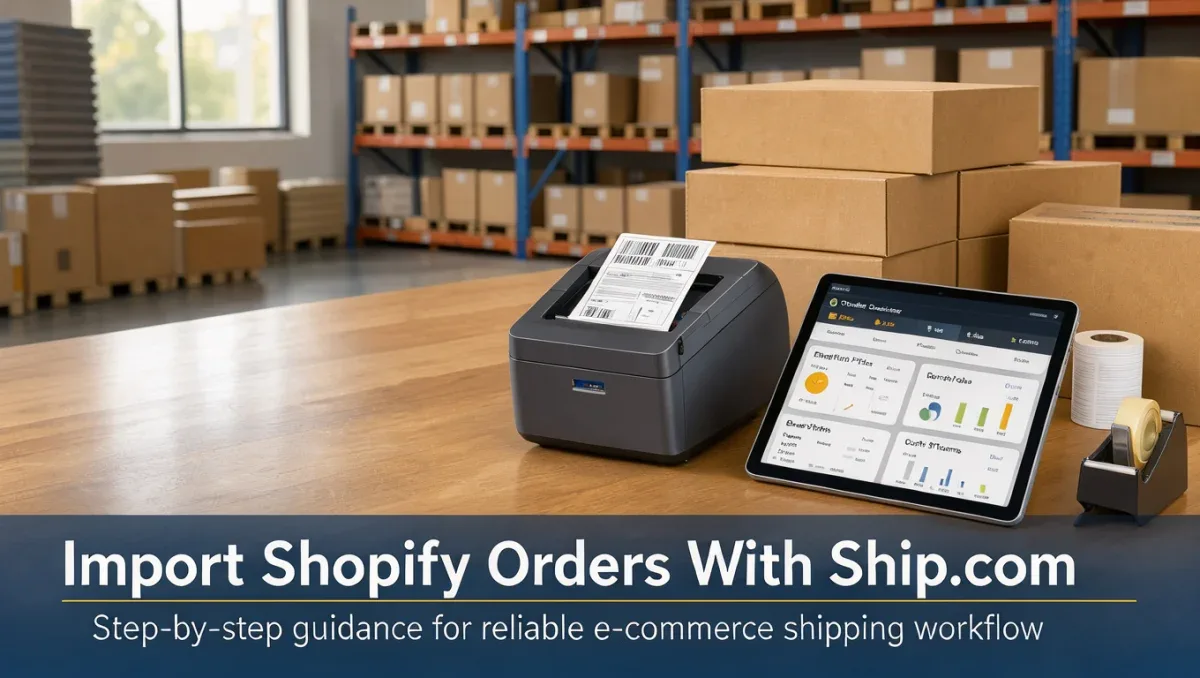
Online merchants who want all fulfillment handled from one place often rely on a dedicated shipping platform. Learning how to bring Shopify orders into Ship.com is usually the first milestone, and doing it well keeps address and tracking mistakes out of daily dispatch. Visitors to Top Apps Reviews often ask how to set this up without creating shipping errors from the start.
Once your store and shipping tool are linked, orders flow in automatically and tracking details push back to your storefront. The steps below walk through the setup, the preparation it requires, and what to check as your order volume grows within the wider E-commerce space.
Quick answer: Link your Shopify store through Ship.com's official channel settings, set your default shipping preferences, pull in open orders, and confirm that fulfillment status returns correctly to Shopify. Run test orders before shipping to real customers so address and tracking problems surface early.
| Aspect | Details |
|---|---|
| Who this guide is for | Online sellers and fulfillment staff who want orderly handling of retail orders. |
| What you need before starting | Admin access to both your Shopify store and your Ship.com account. |
| What you will have at the end | A reliable import routine that keeps orders organized and ready for label creation. |
1. How topappsreviews Put This Guide Together
We combined the features this software is designed to deliver with the topappsreviews evaluation framework, so you can judge whether it suits your operation. Pricing, plan limits and features change frequently, so confirm current details on the official website before purchasing. This article was researched and drafted with AI assistance, then reviewed and edited by the topappsreviews Editorial Team.
2. Before you start
Careful preparation prevents failed imports and customer notification errors in the first fulfillment cycles. Collect your account access and operating details before making the first store connection.
- Confirm you hold owner or administrator permissions in both platforms so you can authorize data sync.
- Review your unfulfilled order queue in Shopify and make sure pending orders include full recipient addresses and SKU data.
- Check that your domestic and international shipping services cover the package sizes your team ships every day.
- Visit the official Ship.com website to confirm the current requirements for connecting a store.
3. Step-by-step workflow
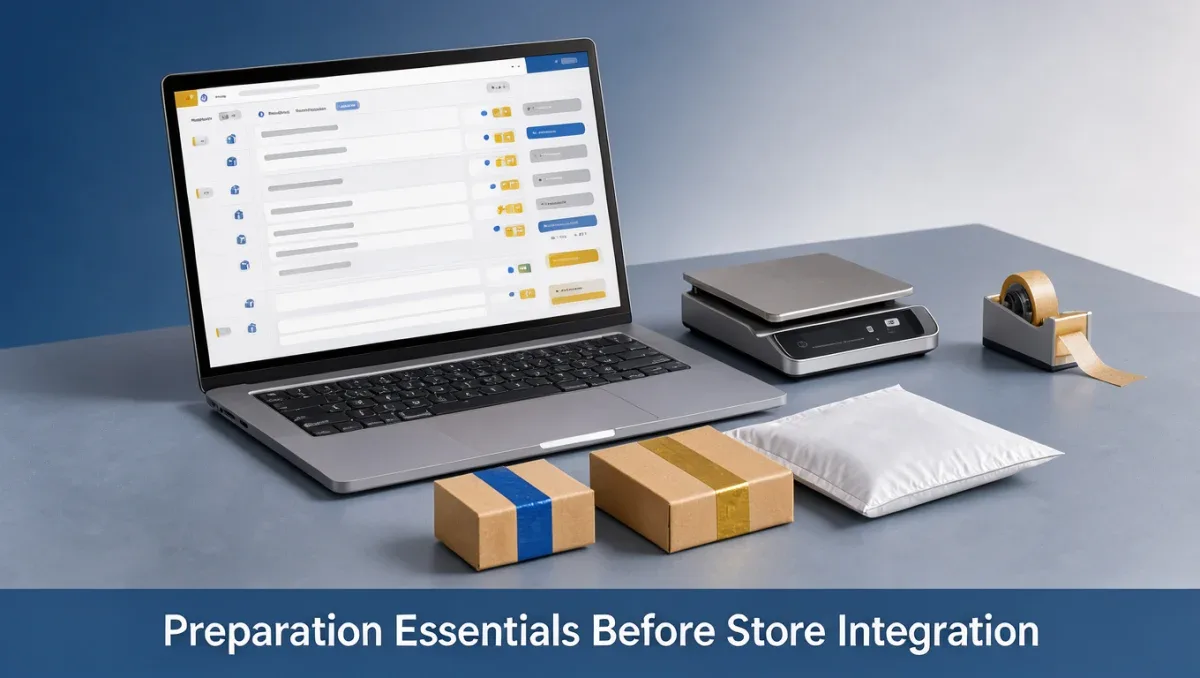
Order software depends on structured data passing cleanly between platforms. Work through these steps in order to build a fulfillment routine that stays organized.
- Connect your sales channel: Authorize your Shopify store inside Ship.com following the official connection process, granting the read and write permissions needed for order management.
- Set default package details: Enter your usual box dimensions, weight units and preferred carriers so imported orders carry standard shipping specifications.
- Pull in initial orders: Run a sync to bring recent unfulfilled orders into your shipping workspace, and check that every line item matches your store.
- Create test labels: Process one test order or a verified customer order to confirm tracking numbers generate and write back to Shopify as fulfilled.
- Schedule recurring sync checks: Review newly imported orders at set points during the shipping day and correct addresses promptly.
4. Your first 30 days
Establishing consistent habits in your first month keeps accuracy high as order volume grows.
| Week | Routine to build | Why it matters |
|---|---|---|
| Week 1 | Manually check each imported line item and customer shipping note before printing postage. | Catches setup errors before any postage is spent. |
| Week 2 | Confirm tracking numbers update order statuses in your storefront without delay. | Keeps buyers informed and cuts down on delivery questions. |
| Week 3 | Review returned packages and failed address flags to tighten your address validation rules. | Reduces carrier surcharges and failed delivery attempts. |
| Week 4 | Track processing times and set a standard daily dispatch cutoff. | Gives your whole warehouse team consistent expectations. |
5. Common mistakes and how to avoid them
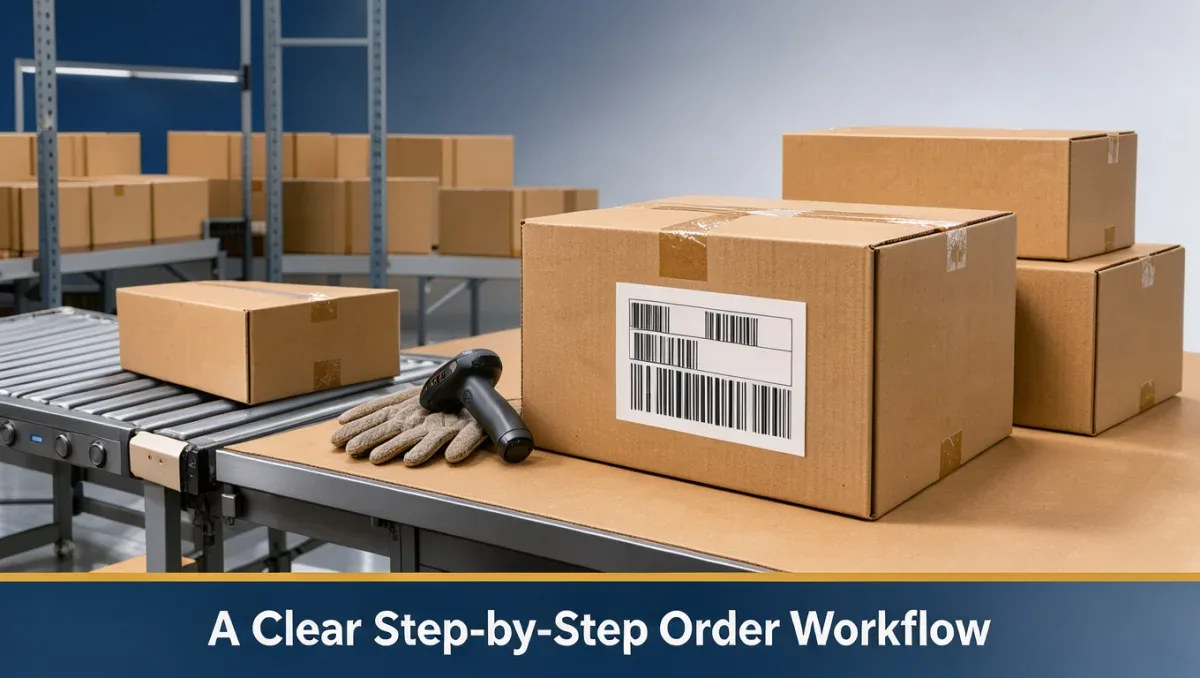
Sellers often run into problems when syncing orders from multiple channels. Spotting these patterns early protects your fulfillment speed.
- Skipping the sync status test: If you never check whether Ship.com marks orders as fulfilled in Shopify, customers may be left unsure when their packages will arrive.
- Missing international address differences: International orders often use address formats that need review before a label is created.
- Importing canceled or archived orders: Set your sync filters to exclude canceled or already fulfilled orders so you don't buy duplicate postage.
- Leaving product weights blank: Missing SKU weights in your store catalog force staff to weigh items by hand, slowing the packing line.
6. When to ask for help
Some logistics or technical problems need a qualified specialist or the platform's support team. Knowing when to escalate saves time.
- When line items, variant choices or customer notes fail to move from the storefront into your shipping queue.
- When orders stay marked unfulfilled in Shopify even after labels are created in Ship.com.
- When customs paperwork, hazardous materials or cross-border tax rules require review by a freight specialist.
- When authorization errors keep recurring between the storefront and your shipping software.
7. Frequently asked questions
What preparation prevents data errors when connecting Shopify to a shipping platform?
Complete customer addresses, accurate product weights and clean SKU records in your store catalog prevent most sync failures. Checking these before connecting shipping software avoids manual cleanup during busy packing sessions.
How should teams handle order sync delays during high-volume periods?
Set fixed dispatch cutoff times and refresh the sync manually if volume spikes. The official documentation explains how often syncing runs during peak retail events.
Why do some orders still show unfulfilled after a label is created?
Fulfillment write-back settings may need adjusting before third-party tools can mark Shopify orders complete. Reviewing your channel integration settings usually resolves the mismatch.
What is the safest way to fix an imported order with a bad delivery address?
Update the address directly in the original order record and verify it against postal standards before buying postage. This keeps customer notifications and shipping labels showing the same delivery details.
8. Next steps
Connecting your order flow is the first step toward a dependable fulfillment routine. Take these practical actions to keep shipping running smoothly:
- Run one live order through fulfillment to confirm tracking updates flow back to Shopify.
- Write down your team's packing and dispatch steps in an operational checklist.
- Check the official Ship.com website for supported carrier accounts and any plan limits that apply to your monthly shipping volume.
Have a question about choosing software? Send it to the topappsreviews team through our contact page, or follow topappsreviews on LinkedIn for new reviews and comparisons.